Free tattoo simulator: try on tattoos online without a photo
by moiraiDigital · updated
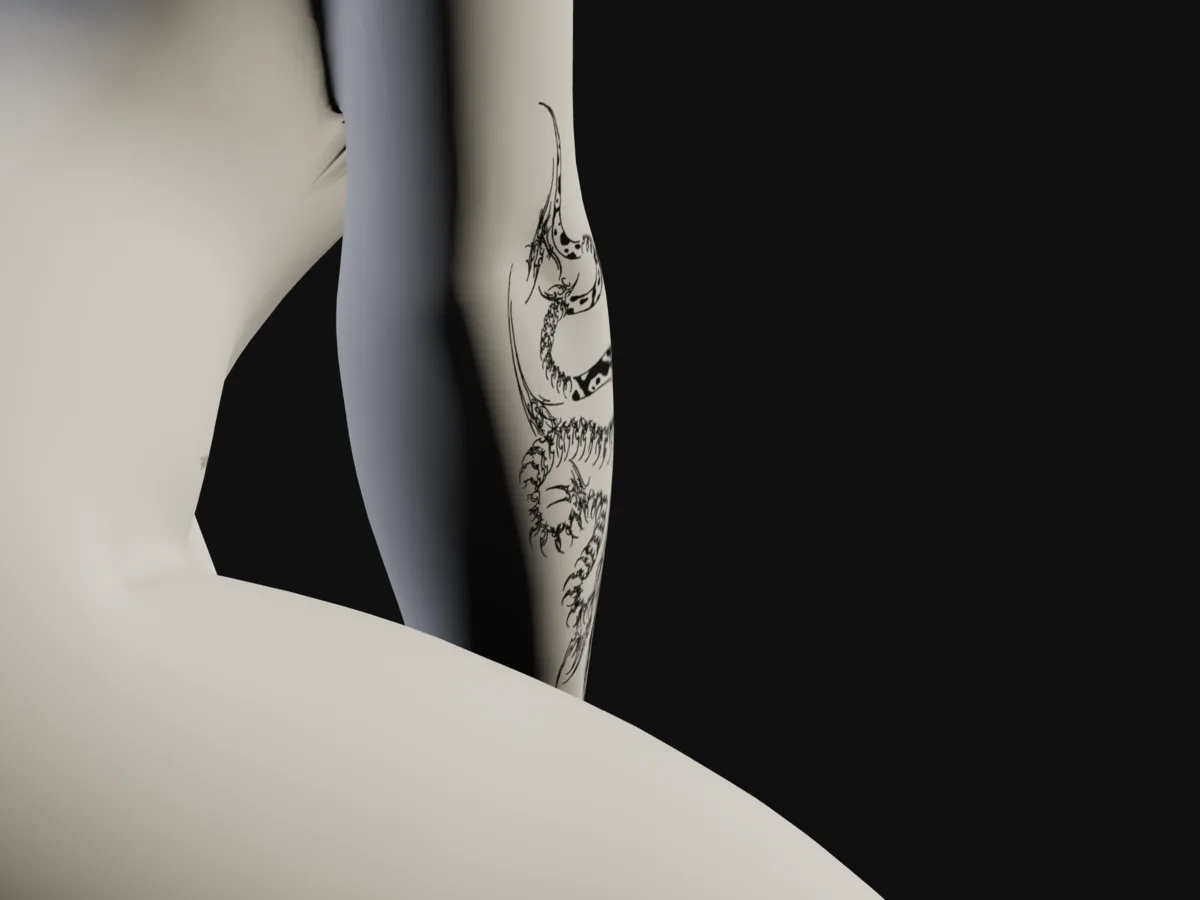
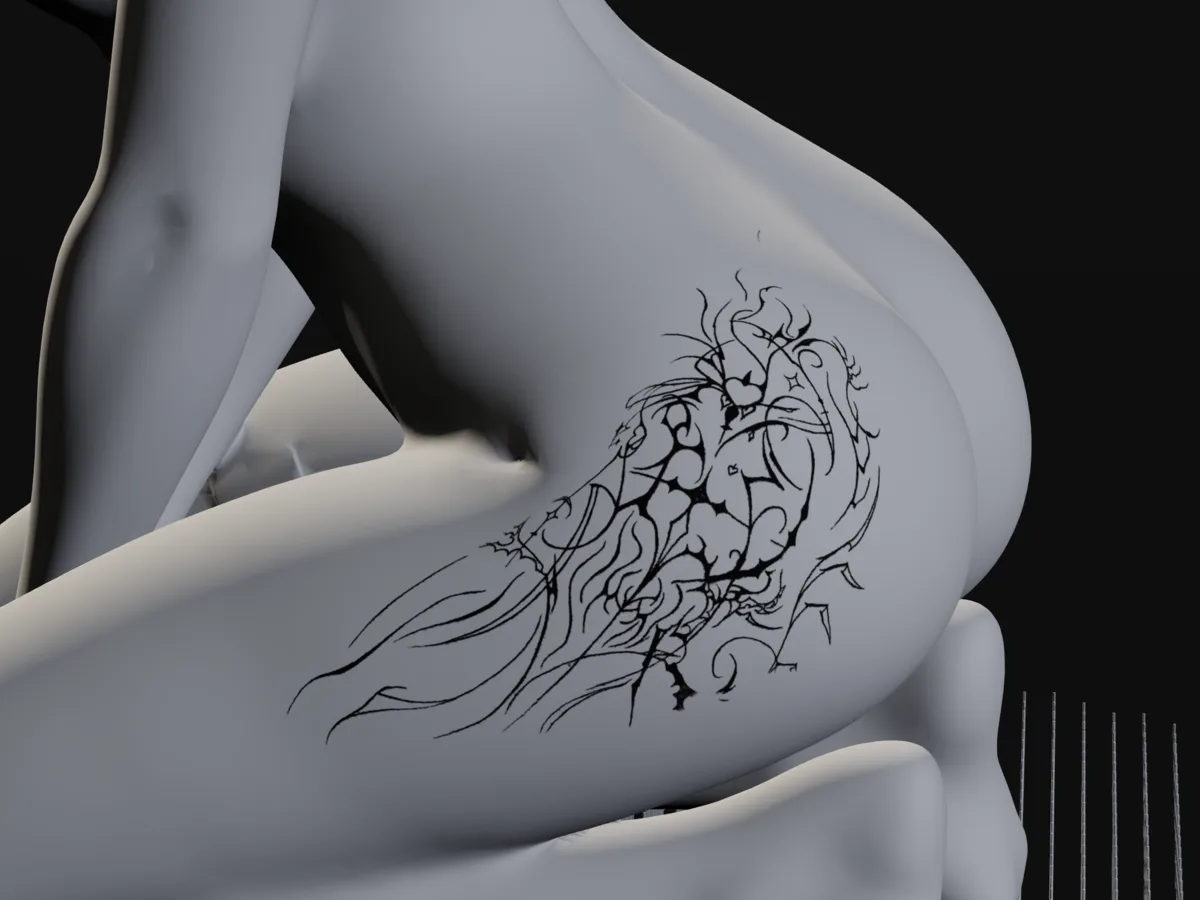
You can try on a tattoo online for free in plan.tattoo, a 3D tattoo simulator you open in any web browser. Add your design, put it on a plaster cast of a body, type its size in centimetres and turn the cast to check it from every side, back included. It needs no photo of you and no app.
Most tattoo simulators work from a picture of you: you upload a photo of your arm and lay the design over it. That shows the design against your own body, from the one angle the photo was taken at, at whatever size looks right on the screen. plan.tattoo goes the other way. The body is a 3D cast with real proportions, so the size you type is the size it covers, and you can walk round it. The rest of this page is how to use it, when a photo or camera app is the better pick, and how to get a clean result from your image.
How to try on a tattoo online, step by step
A first go takes about five minutes. Nothing to install and no account to start; it works in a phone or desktop browser with WebGL, which almost every current browser has.
1. Add the design
Open the planner and add an image from your device: a PNG or a JPG of a drawing, a flash sheet, line art or a phone photo of a sketch. The tool lifts the paper away so only the ink is left, and a colour design keeps its colour. No design yet? Four sample designs are in the panel to learn on.
2. Pick a body
Choose a cast. The casts include men and women, whole figures (standing, sitting, kneeling) and single parts such as a bust, a torso, a forearm or a leg. A multisize man and a curvy woman come in sizes from S to 3XL, so you can get closer to your own build. Some casts can be posed, which helps for a piece on the inner arm or the side that only shows when the arm is raised.
3. Place it
Click where the tattoo should go and drag it into place. The design bends round the curve of the cast, so on a forearm or a calf part of a wide piece runs out of view, as it would in real life. Turn it to the angle you want with the handle on its ring, or type the angle in degrees.
4. Type the size
Type the size in centimetres in the bar under the selected tattoo. This is the step a photo simulator can't give you. If your artist quoted a size, use theirs. If not, the tattoo size chart has the usual ranges for each part of the body, and the 10 cm tattoo page shows one size across several placements.
5. Turn it and check the sides
Drag the background to walk the camera round the cast, or use the front, side and back views. Look at where the edges go. A design that reads well face on can lose a third of itself round the side of the arm. If you only want to move the tattoo and keep the view still, press V to lock the view. Moving the light helps too: a low light shows how the curve of a muscle catches the design.
6. Save a picture or a plan
Save a picture of each view you like. That needs no account, and each picture carries the size in centimetres, so your artist sees what you tried. With a free account you can keep the whole set-up as a plan and open it again later, or share a link to it.
3D simulator, photo simulator or AR: which one
Tattoo simulators come in three kinds, and they answer different questions.
A photo simulator puts the design on a picture you upload of your own arm, back or leg. Some, like Tat Ink's, use AI to fit it to the shape and lighting in the photo. It shows the design on your own skin, with your colouring. The size is a guess, though, because a photo has no scale: the same arm fills the frame at arm's length and looks small from across the room. And you see only the one angle the photo was taken from.
An AR app draws the design over the live picture from your phone camera, so it moves with you as you turn your arm. Augmented reality means computer graphics laid over the real world in real time. It's the closest you can get to a mirror check without ink, and most of these apps are on phones only.
A 3D simulator such as plan.tattoo puts the design on a 3D body. You lose your own skin, but you gain a size in centimetres and every angle, and you can try a placement that's hard to photograph on yourself, like the middle of your back or along your spine. Several tattoos can go on the cast at once, so you can see how a new piece sits beside one you already have.
Pick by the question you have. For the size, the placement, how a piece wraps or how two pieces line up, start in 3D. For how it looks on your own skin tone, use a photo or AR app afterwards. Our tattoo try-on apps comparison lists the tools of each kind, with their platforms and prices on the day we checked.
What a simulator can and can't tell you
A 3D simulator is good at what can be measured. You can see whether a design fits the space between wrist and elbow, whether a back piece leaves room for more later, and whether fine detail survives at the size you want once you zoom out to normal viewing distance.
It can't show your skin tone. How ink colours read once healed depends on your skin tone and its undertone. Ink makers note that pastels and light colours can look muted or barely show on medium and darker skin, and recommend bold, saturated colours there. A plaster cast is one colour for everyone, so check colour work with a photo or AR app, or with your artist.
Your exact shape is out of reach too. The sized casts get you close, but no cast is you. Run a soft tape over the same place on your own body before you agree a size.
It also can't show time. A tattoo is crisp on the day, and lines spread a little in the years after. One studio writes that fine lines and small details are the most vulnerable, and that blurring can sometimes show within the first few years. A simulator shows the design as drawn, so treat fine detail at small sizes with care.
And it can't redraw your design. It places the image you give it. A good artist will adapt the drawing to your body and to their own hand, so bring the pictures as a starting point for the talk. For what else to bring, see how to plan a tattoo.
Getting a good result
What you get out of a simulator depends on the image you put in.
A transparent PNG is best. The PNG format can carry an alpha channel, so the space round the design is truly empty and nothing but the ink lands on the body. If your drawing app can save a PNG with a transparent background, use that.
No transparent file? Use a clean scan or a photo of the drawing on white paper. Shoot it flat, square on, in even daylight, with no shadow from your phone across the page. Crop close to the design before you add it. The tool lifts plain paper well; creases, grey shadows and a second drawing at the edge of the page make that harder.
Think about line weight. A drawing on a sheet of A4 is often scaled down a long way for a tattoo, and lines that look delicate on paper get very thin at small sizes. Zoom in to the size you typed and look at the gaps between lines. If they close up, the piece may need to be larger, simpler, or drawn with bolder lines. Lettering is the same: one tattoo studio's advice is that a single word can go smaller than a sentence, and that cutting a phrase down often works better than shrinking it.
Try more than one size. Put the design on at the size you have in mind, then a few centimetres bigger and smaller, and save a picture of each. Seeing them side by side usually settles it faster than staring at one.
Comparing simulators
If you are weighing plan.tattoo against another tool, there are head-to-head pages for Try Tattoo 3D, InkHunter and Tatship. And if you work in Blender or three.js yourself, the male casts are free 3D body models you can open there. The 3D tattoo visualizer guide covers what a 3D body can and can't tell you.
Questions
Can I try on tattoos online for free?
Yes. plan.tattoo is free in any browser on a phone or a computer. You add a design, put it on a 3D plaster cast, type its size in centimetres and turn the cast to see it from every side. Saving a picture needs no account; a free account keeps your plans.
What is the difference between a tattoo simulator and an AR tattoo app?
A 3D tattoo simulator shows the design on a model body you can turn, at a size you set. An AR app draws the design over the live camera picture of your own body, so you see it on your own skin tone but without a measured size. You can use both: a 3D simulator to settle where and how big, then an AR or photo app to check colour on your own skin.
What image works best in a tattoo simulator?
A transparent PNG of the design works best, because only the ink is placed. A clean scan or a flat, evenly lit photo of the drawing on white paper also works well, cropped close to the design. Avoid shadows, creases and other drawings at the edge of the image.
Can a tattoo simulator show how a tattoo will look on my skin tone?
A 3D simulator can't, because the bodies are plaster casts in one colour. Skin tone changes how ink colours look, and light or pastel colours can look muted on darker skin. To check colour against your own skin, use a photo or AR try-on app and ask your artist.
Can I try more than one tattoo at once?
Yes. In plan.tattoo you can put several designs on the same cast, each at its own size and angle. Put a copy of an existing tattoo where it sits on you, then try the new design beside it, or lay out a matching pair on both forearms.
Next steps: the tattoo placement guide goes through each part of the body, and first tattoo covers the rest of the process if this is your first.
Sources: Tat Ink: virtual tattoo simulator · Wikipedia: Augmented reality · Wikipedia: Portable Network Graphics · Starbrite Colors: Choosing tattoo ink for different skin tones · Ray Studios: Why some tattoos blur over time · The Black Hat Tattoo: Lettering longevity