3D tattoo visualizer: see a tattoo on a body before you get it
updated
A 3D tattoo visualizer puts your design on a model body that you can turn, so you see size, placement and wrap before you book. In plan.tattoo you type the size in centimetres, say 15 cm (5.9 in), drag it into place on one of 74 plaster bodies, and check it from front, side and back, free in the browser.
What is a 3D tattoo visualizer?
A 3D tattoo visualizer, sometimes called a tattoo placement simulator or a tattoo planner, is a program that shows a tattoo design on a three-dimensional body. The design is laid over the surface of the model the way a stencil follows the skin, so it bends round a forearm or across the shoulder blades instead of sitting flat like a sticker on a photo. You can turn the body, move the design, change its size and look again.
The point is to answer the questions a flat picture can't. A design that fills your phone screen might be 6 cm (2.4 in) on a wrist or 25 cm (9.8 in) across a back, and it looks different at each. On a 3D body you see the piece against the whole limb, and you see what happens at the edges, where a curve takes part of it out of view.
It is one of three ways to try on a tattoo online. The other two are AR apps, which draw the design over your phone's camera picture, and photo tools, which place it on a picture of you. Our comparison of tattoo try-on apps looks at eleven of them.
How do I use a 3D tattoo simulator?
Here is the whole process in plan.tattoo. It takes a few minutes, needs no account to start, and works on a phone or a computer with a browser that supports WebGL.
- Open the planner at plan.tattoo/app. Nothing to install.
- Pick a body. There are 74 plaster casts, male and female: busts, torsos, a forearm, a leg, and standing, seated and kneeling figures. Choose one close to the build you have in mind, or the part you are planning.
- Add your design. Any PNG or JPG works: a drawing, line art, or a photo of a sketch. The background lifts off, and colour designs keep their colour. If you don't have a design yet, try one of the four samples.
- Set the size in centimetres. Type the length of the longest side. Start from what your artist suggested, or from the typical range for that placement in the tattoo size chart.
- Place it. Drag the design across the cast, turn it, and mirror it if it should face the other way.
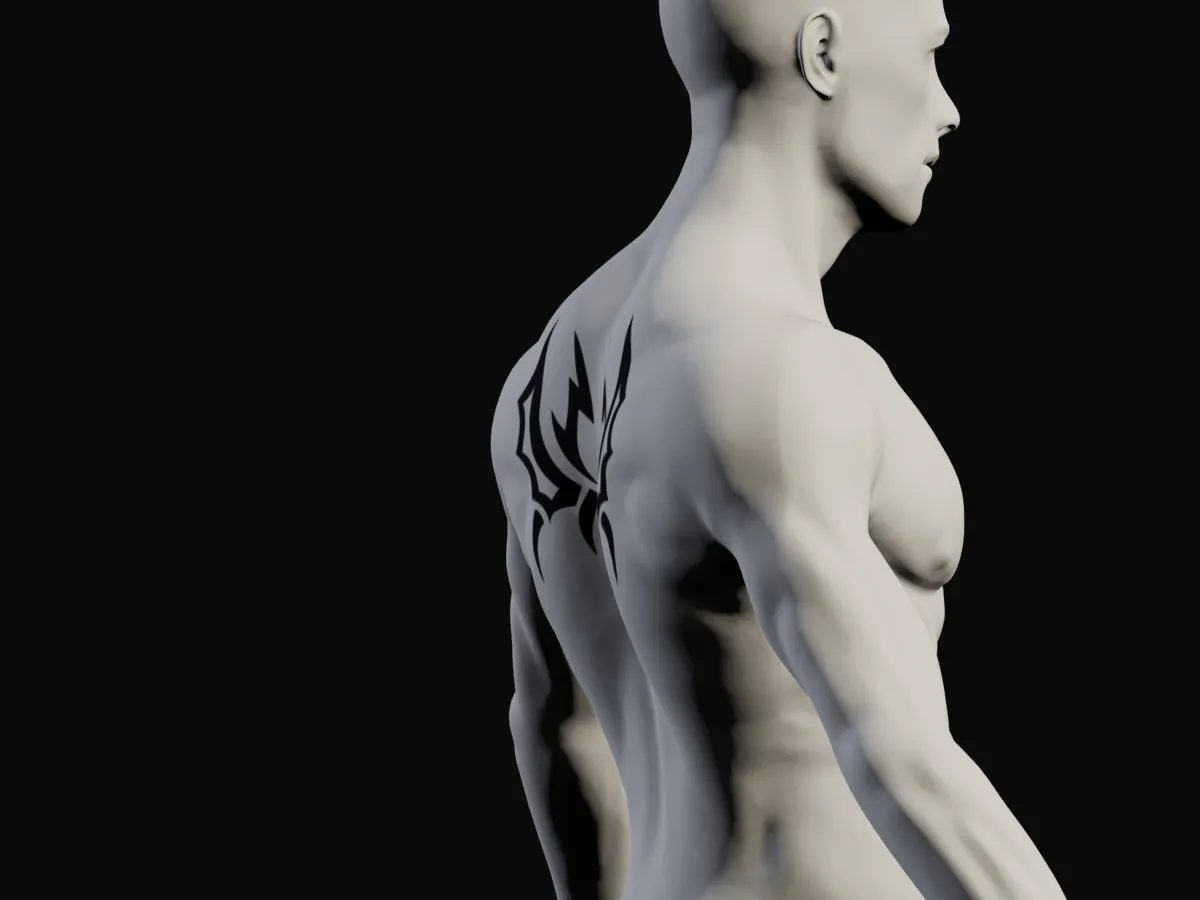
- Turn the body. Look at the design from the front, the side and the back, and turn the camera all round to see where it wraps out of sight.
- Check the light. Switch between hard and soft light to see how the curves catch shadow across the design.
- Keep a picture. Take a screenshot of each view, or make a free account to save the plan and pictures of it, and take them to your artist with the size in centimetres.
Then measure the same spot on yourself with a soft tape, following the curve of the skin. Each body is scaled to adult proportions, but no model matches you exactly.
What can a placement simulator tell you?
Size, against the whole body
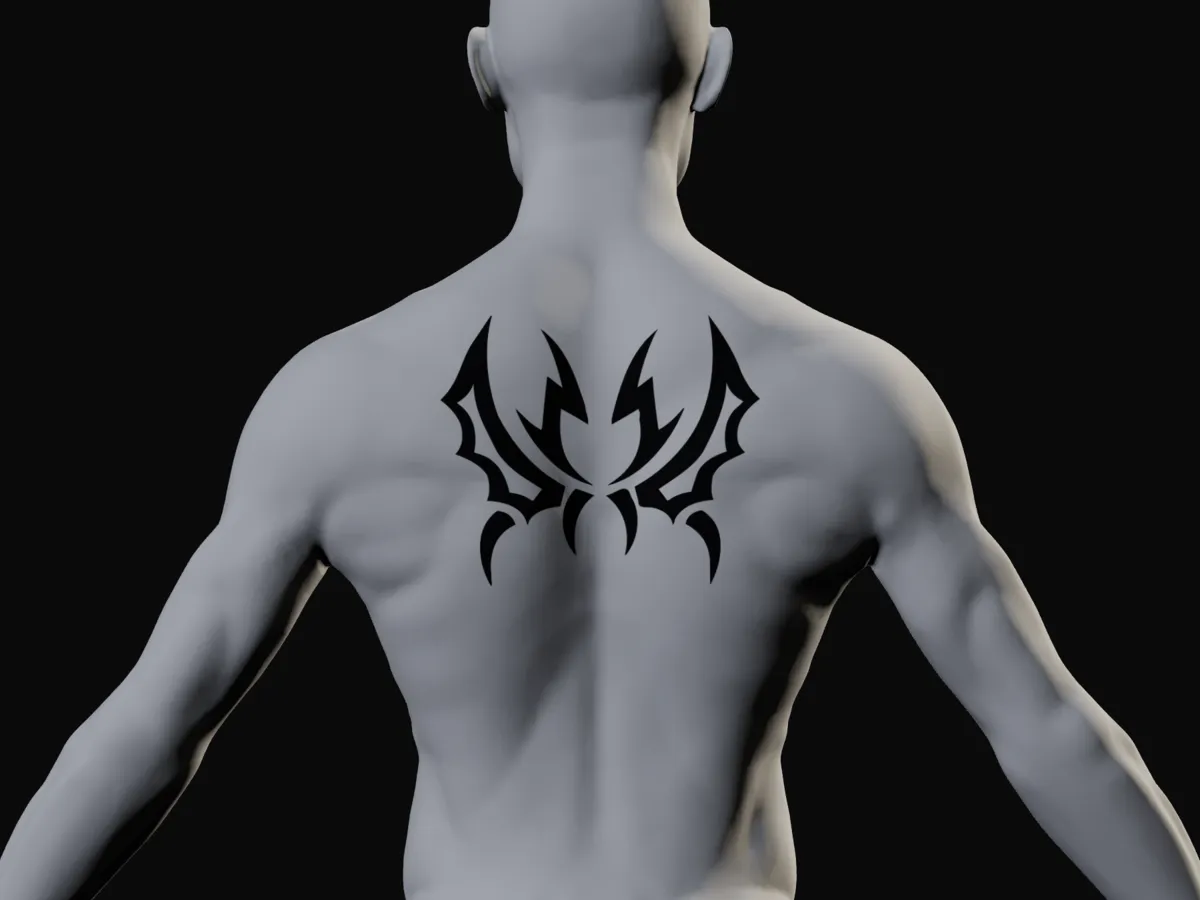
Typing 10 cm (3.9 in) and seeing it on a forearm is the quickest way to learn that it runs almost half the way from wrist to elbow, while on the upper back the same piece is a small mark between the shoulder blades. Our 10 cm tattoo and 15 cm tattoo pages show the same designs at the same framing across placements, so you can compare them directly.
Placement and wrap
Some areas are close to flat and some are not. The inner forearm and the middle of the back take a design almost as drawn; the outer forearm, the calf and the ribs curve away, so a wide design wraps and part of it is hidden from any one angle. Turning the body shows you how much. The placement guide and the pages for the forearm, calf and ribs go into each area.
How it reads from across a room
Zoom the camera out until the whole figure fits. That is roughly how people will see the tattoo most of the time. A bold outline still reads; fine shading and small text turn into a grey patch. If the design only works close up, it may need to be bigger or simpler.
How several pieces sit together
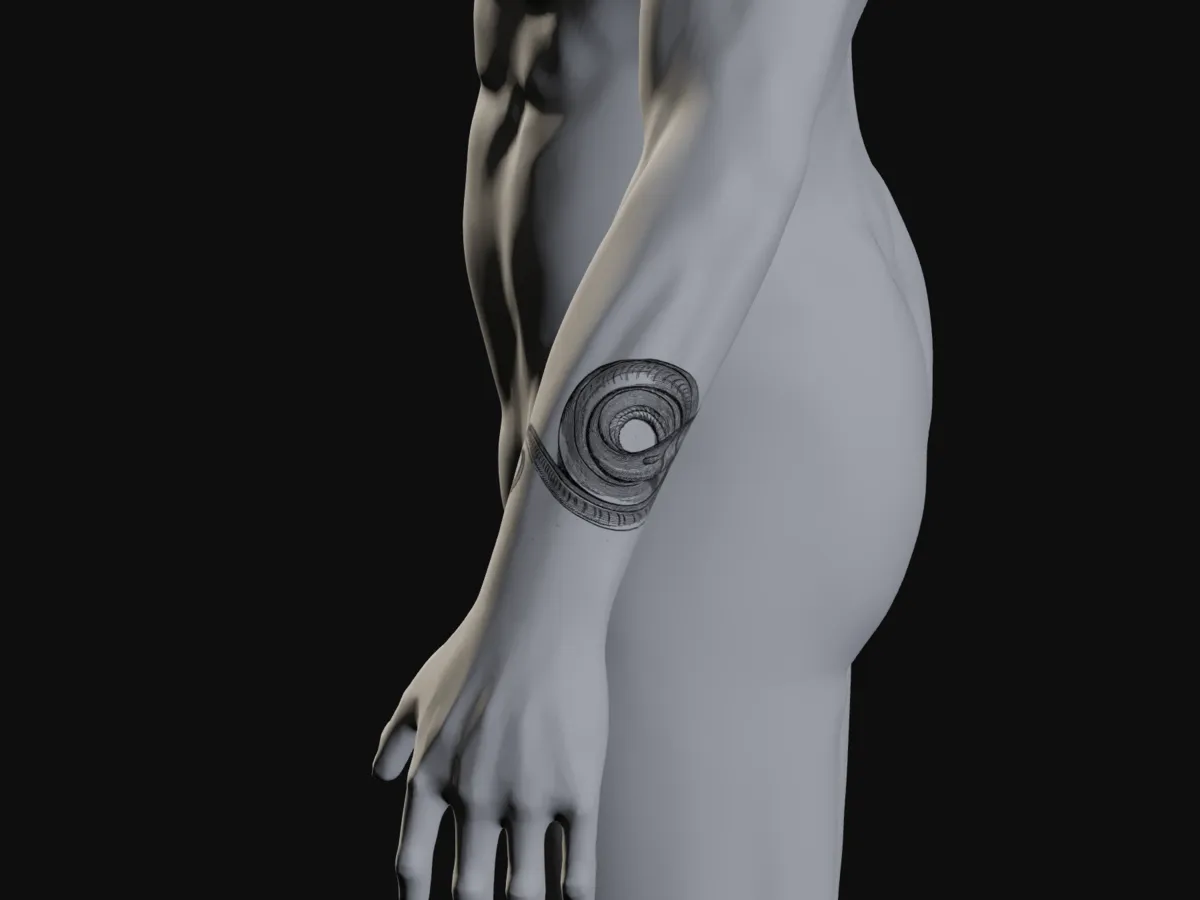
You can put more than one tattoo on a body, which helps when you are planning a piece next to one you already have, or a set that should line up across the chest or down the arm.
What can't a 3D visualizer show?
A 3D body is a plaster cast, so some things are out of its reach, and it helps to know which.
- Your own skin tone. Ink sits under the outer layer of skin, and skin tone and undertone change how colours look through it. Tattoo ink makers advise artists to choose more opaque, strongly pigmented colours for darker skin. An AR app or a photo tool shows the design on your skin; a plaster body can't.
- The healed look. A fresh tattoo looks different while it heals, and healing can change its look more on some skin tones. The visualizer shows the design as drawn.
- Line spread over the years. Ink slowly spreads under the skin, so very fine lines thicken and small lettering softens. Studios describe edges looking slightly fuzzy after about five years and visibly thicker lines after about ten. A clean preview today doesn't show that, so leave space between lines and don't shrink lettering too far.
- Your exact body. Bodies differ in length, width and muscle, and they change with weight and age. Measure yourself.
- The artist's drawing. The visualizer places your image as it is. A good artist will redraw it to fit your body and their style.
3D visualizer, AR or photo try-on?
Use a 3D visualizer for size, placement and wrap, because you can type a size and turn the body. Use AR or a photo for skin tone and the look on your own body. AR apps show the design live through the camera; photo tools give you one picture from one angle, and the size depends on how far away the camera was. Most photo tools also send your photo to a server. plan.tattoo needs no photo of you, and your design stays on your device unless you save a plan to an account. The full side-by-side is in tattoo try-on apps compared.
A good order is size and placement in 3D first, then a check on your own skin, then a consultation with your artist. How to plan a tattoo covers what to bring.
Questions
Is there a free tattoo placement simulator?
Yes. plan.tattoo is a free 3D tattoo placement simulator that runs in the browser. You put any design on one of the plaster 3D bodies, type its size in centimetres, drag it into place and turn the body to see it from every side, with no account needed to start.
Can I try a tattoo on a 3D model online?
Yes. Several browser tools put a design on a 3D body you can turn, plan.tattoo among them. Upload a PNG or JPG of the design, set the size, place it on the body and look at it from the front, side and back. Nothing needs to be installed.
How do I see a tattoo on my body before getting it?
Use a 3D visualizer to settle the size and placement, then an AR app or a photo tool to see the design on your own skin tone. Measure the spot on yourself with a soft tape and bring the size in centimetres to your artist.
Is a 3D tattoo visualizer accurate for size?
It is a close guide. In plan.tattoo each body is scaled to adult proportions, so a design set to 12 cm covers about 12 cm of that body. Your body will differ a little, so measure the same spot on yourself along the curve of the skin.
Do I need a photo of myself to use a tattoo visualizer?
Not with a 3D visualizer. plan.tattoo puts the design on plaster 3D bodies, so it asks for no photo of you, and your design stays on your device unless you save a plan to a free account.
Sources: Vatican Tattoo Studio: why micro tattoos blur · Black Hat Tattoo: how small can lettering go · Starbrite Colors: choosing tattoo ink for different skin tones · Sullen: do different skin types affect the tattooing process · Sydney Tattoo Convention: tattoo size and body part guide